01
Animate a manga panel
Turn a still into a moment with a blink, turn, gesture, wind movement, or a controlled camera move.
Create a short anime video from text, a manga image, reference media, first-and-last frames, or a source video. Define one main action and camera move, choose the model controls you need, then review motion continuity, faces, hands, and framing before the next pass.
Workflow / Ready
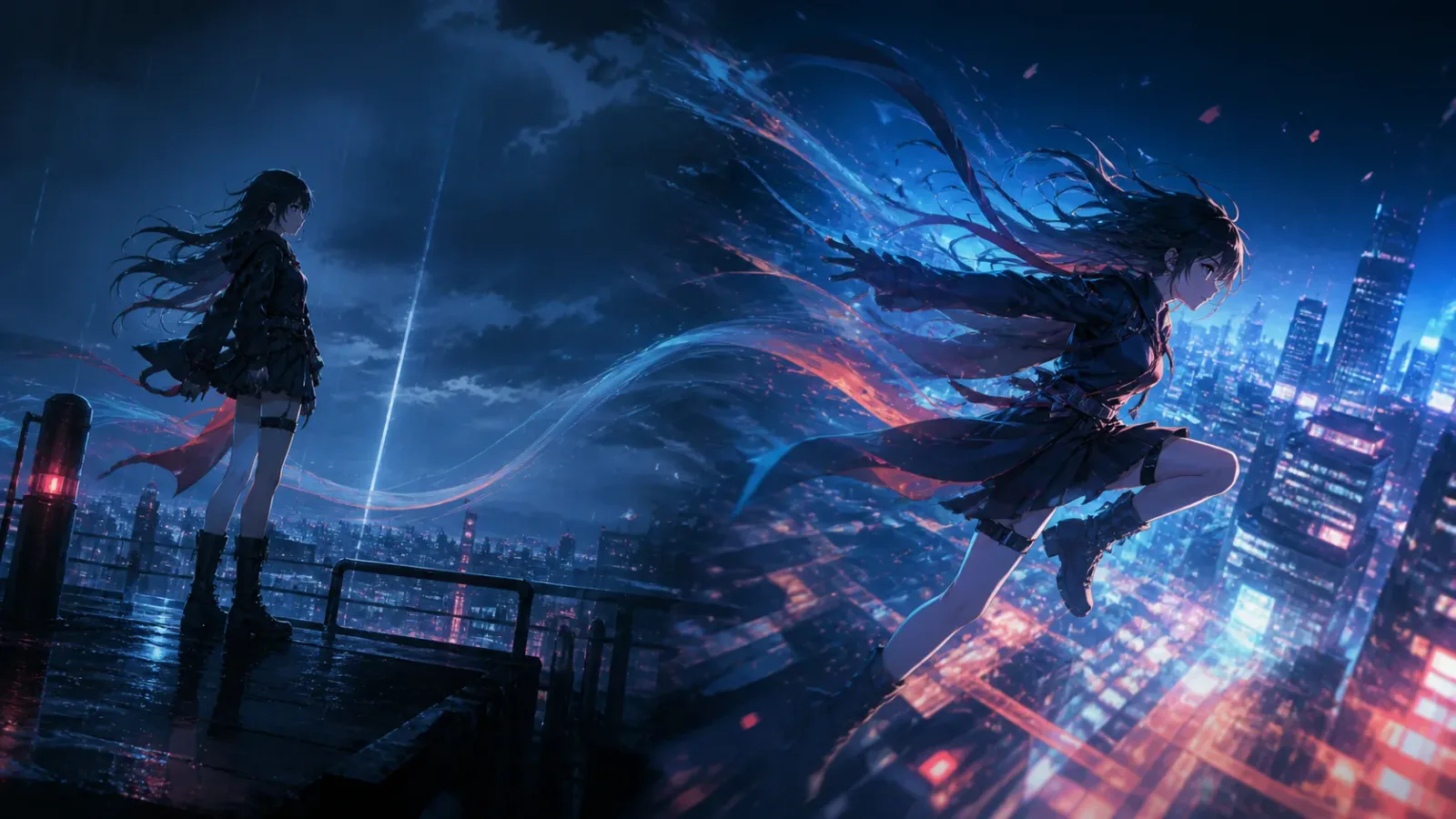
Use a prompt, a still image, reference media, first and last frames, or a source video according to the decision you need to test.
State who moves, what changes, where the camera goes, and how the moment should begin or end.
Watch for motion continuity, framing, hands, faces, and the timing of the action before adding another event.
USE THE VIDEO GENERATOR FOR
Use the AI Anime Video Generator for short motion tasks: animate a manga panel, test a storyboard shot, create a character motion clip, or transform reference media into an anime-style scene.
Turn a still into a moment with a blink, turn, gesture, wind movement, or a controlled camera move.
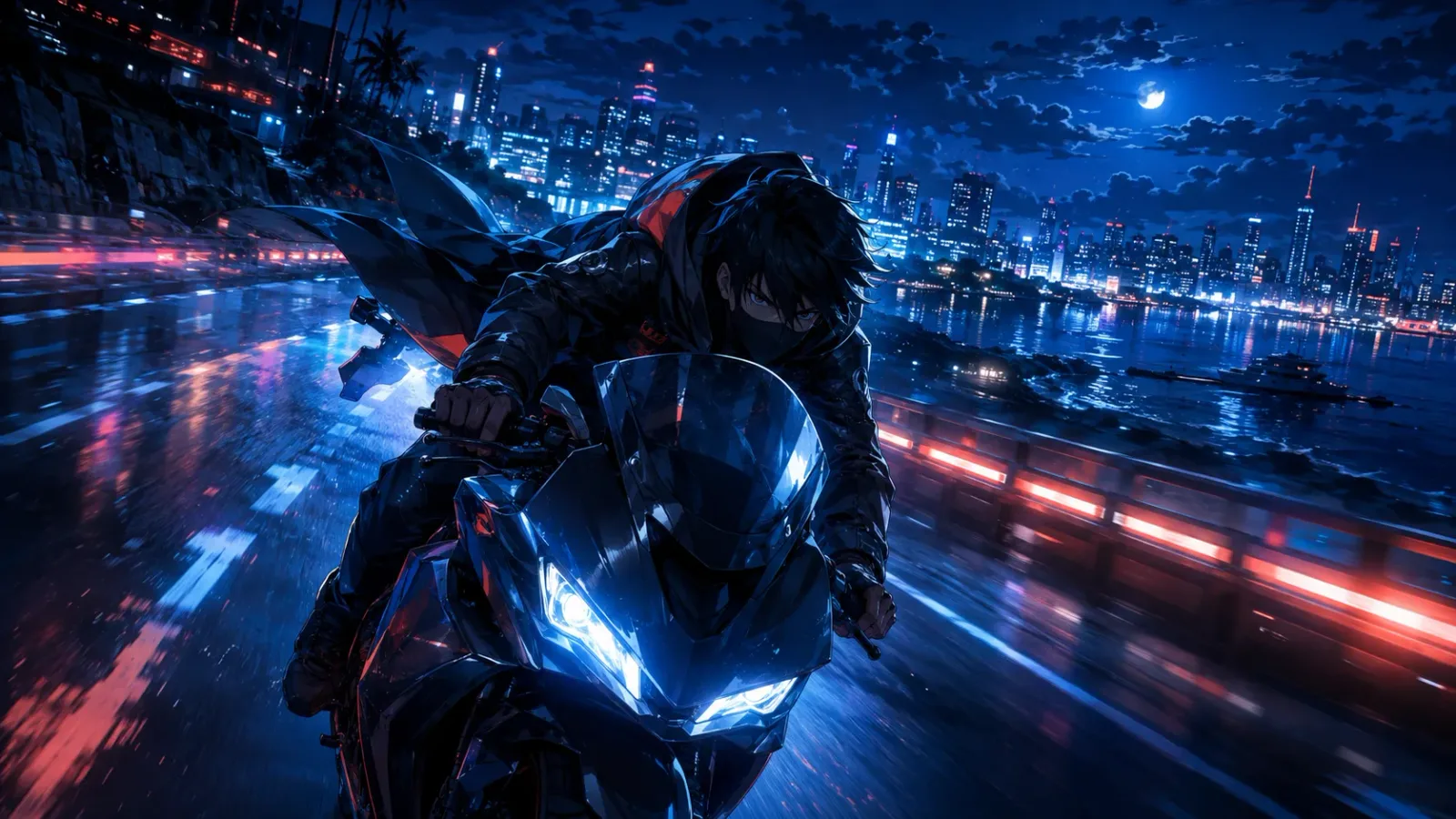
Use a first and last frame when you already know where the scene should begin and where it should land.
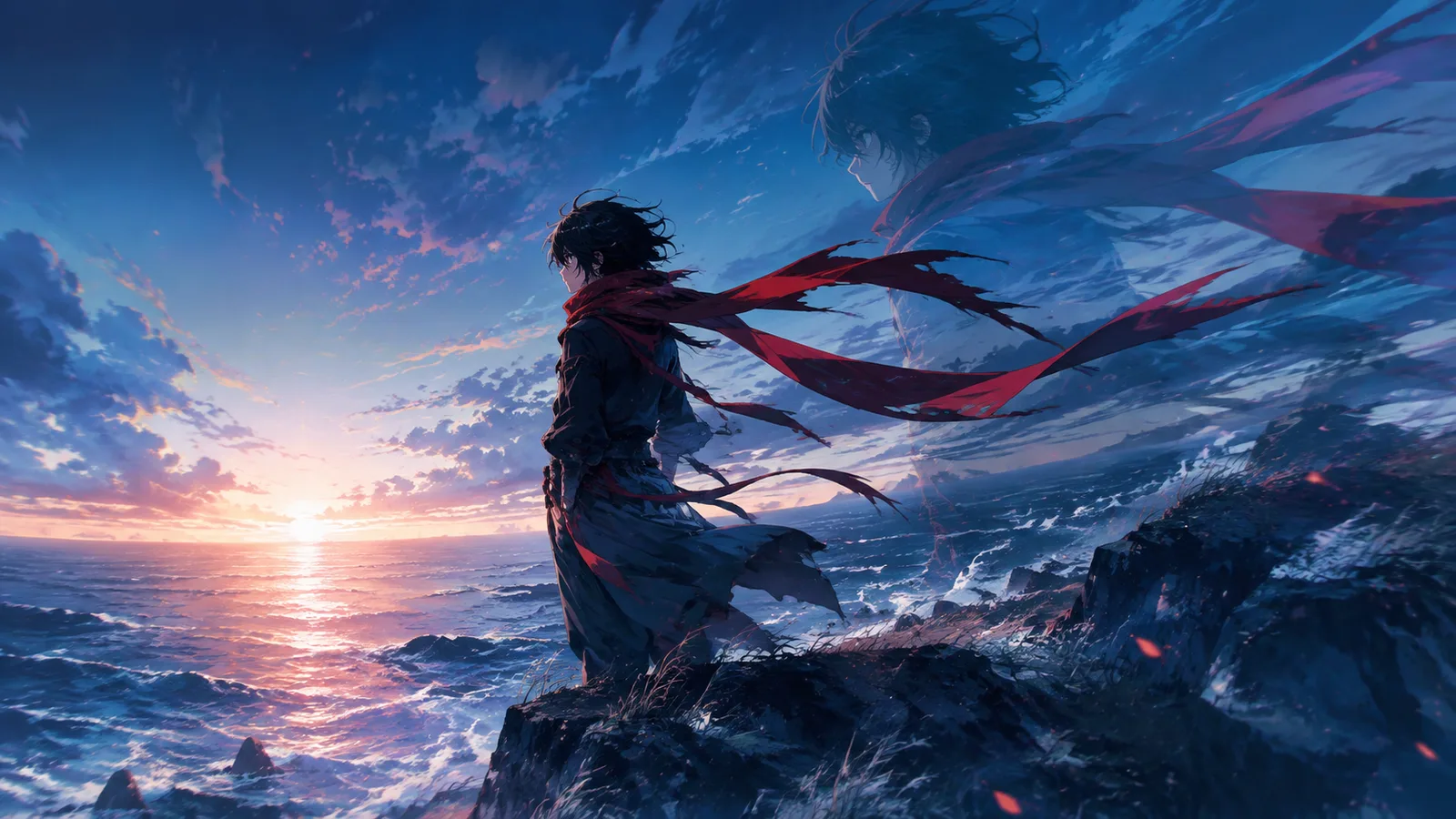
Keep a character or visual direction in view while you test one action instead of planning a whole episode at once.
WHAT YOU CAN DIRECT
A useful AI anime video starts with a readable beat. Direct the subject, camera, timing, and continuity separately before asking for more action.
Describe one primary action, its direction, speed, and the small secondary motion in hair, fabric, eyes, or hands.
Choose a locked camera, push-in, pull-back, pan, orbit, or follow shot and state what the move should reveal.
Give the shot a clear beginning, main beat, and landing pose; keep the number of events realistic for the clip length.
Use reference media or first and last frames when identity, costume, composition, or the destination pose must stay controlled.
MOTION PROMPT GUIDE
Describe one visible action, the camera decision, and the timing in that order. Keep short clips focused so you can tell whether motion continuity improved between attempts.
Write who moves, the direction of the movement, and the visible change you want to happen in the clip.
Say whether the camera is static, pushing in, panning, orbiting, or following the subject when that choice matters.
Keep one main beat per short clip and use the duration or frame inputs to make the beginning and end easy to judge.
MANGA VIDEO GENERATOR FAQ
These answers explain the supported starting inputs, the expected short-video output, and the continuity limits that still need review.
Yes. Add a still image or reference image, then describe the movement you want to see. A focused action and a clear camera direction are easier to review than several events in one prompt.
Use them when the start and destination of the shot are already decided. Describe the transition between them and keep the action between the frames simple enough to judge.
The same workspace is designed for anime-style motion from manga scenes, reference media, and text direction. The available controls depend on the selected video model.
It is intended for short scene tests and motion clips. Story structure, dialogue, sound design, editing, and continuity across many shots still need a separate production process.
Name the subject, one visible action, the camera direction, timing, and the anime treatment you want to review. Keep the instruction in the same order as the shot.
Start with one main beat, such as a blink, turn, gesture, or camera move. Adding several unrelated events makes timing and continuity harder to judge.
Check the start and end frames, reference media, camera path, and action timing. Change one of those decisions at a time before running another short clip.
Use it as a motion draft until you review faces, hands, continuity, sound, and editing. A finished scene still needs the wider production workflow around the generated clip.
CREATOR FEEDBACK
These eight notes turn common motion-review moments into a practical checklist. They are workflow guidance, not star ratings or claims about verified users.
One visible change gives a short clip a readable purpose before camera and style details are added.
Name who moves, in which direction, and how much so the action can be checked against the starting pose.
A static frame, push-in, pan, orbit, or follow decision should be explicit when it carries the scene.
First and last frames are useful when the shot already has a clear destination and transition to test.
Keep the main beat inside a short, reviewable duration instead of stacking several moments into one prompt.
Watch the features that make the character recognizable, then adjust the reference or action rather than everything at once.
A blink, sway, or small gesture is easier to compare when the beginning and end do not introduce unrelated changes.
Review the clip once, name the single problem to solve, and let the next generation answer that problem directly.