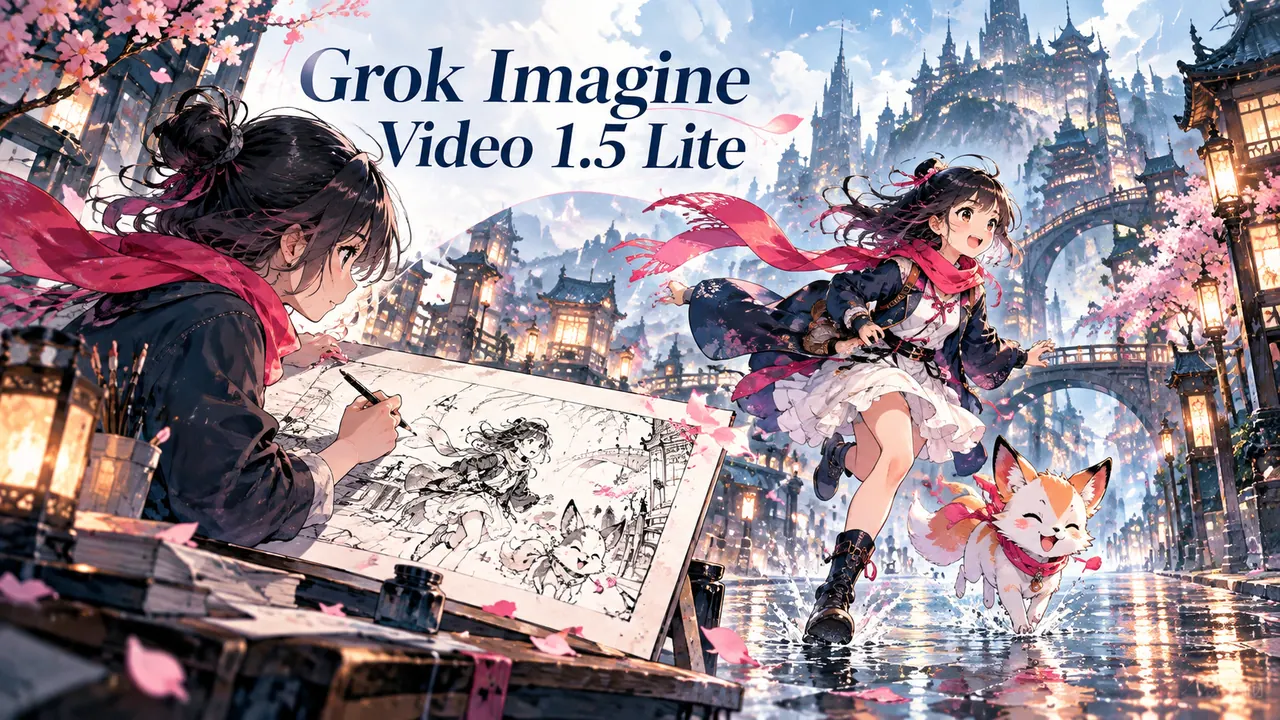
Grok Imagine Video 1.5 Lite Video Generator

Grok Imagine Video 1.5 Lite is an AI video generation model developed by xAI. Explore short anime shots with Grok Imagine Video 1.5 Lite. Animate one illustration or describe a scene, choose 4–15 seconds and review motion and sound.

Grok Imagine Video 1.5 Lite Video Generator

MODEL OVERVIEW

What is Grok Imagine Video 1.5 Lite?

Explore short anime shots with Grok Imagine Video 1.5 Lite. Animate one illustration or describe a scene, choose 4–15 seconds and review motion and sound.

Create a video
Grok Imagine Video 1.5 Lite Video Generator
  1. Character studies

    Describe the hairstyle, clothing and expression of one original character. Compare the face and silhouette with your design before choosing a variation.

  2. Animate one starting image

    Upload one JPG, PNG or WEBP image of up to 10 MB and describe how the scene should move. Use a sharp subject, useful background space and a composition close to your intended video. The image determines the output aspect ratio. Faces, product labels and fine edges can change during animation, so compare the result with your original.

  3. Choose the shot length and framing

    Choose a whole-second duration from 4 to 15 seconds. Keep a four-second brief focused on one action; use longer clips when a movement needs time to develop. Text-to-video offers auto, 16:9, 9:16, 1:1, 4:3, 3:4, 3:2 and 2:3. Choose vertical framing for a mobile story or a wide frame for a presentation. With a starting image, prepare the crop before uploading.

CORE CAPABILITIES

Grok Imagine Video 1.5 Lite features

Explore short anime shots with Grok Imagine Video 1.5 Lite. Animate one illustration or describe a scene, choose 4–15 seconds and review motion and sound.

Turn a written scene into motion

Describe the subject, setting, movement and camera direction in a short, coherent shot. A ceramic vase under side lighting with a slow camera orbit is easier to assess than several scene changes at once. Text-to-video needs no uploaded image; use the result to compare your composition and motion idea before developing a longer edit.

Animate one starting image

Upload one JPG, PNG or WEBP image of up to 10 MB and describe how the scene should move. Use a sharp subject, useful background space and a composition close to your intended video. The image determines the output aspect ratio. Faces, product labels and fine edges can change during animation, so compare the result with your original.

Choose the shot length and framing

Choose a whole-second duration from 4 to 15 seconds. Keep a four-second brief focused on one action; use longer clips when a movement needs time to develop. Text-to-video offers auto, 16:9, 9:16, 1:1, 4:3, 3:4, 3:2 and 2:3. Choose vertical framing for a mobile story or a wide frame for a presentation. With a starting image, prepare the crop before uploading.

Compare 480p, 720p and 1080p

Start at 480p to explore a shot, then consider 720p or 1080p for a larger placement. The model produces 1080p by upscaling 720p; selecting it does not make the source rendering native 1080p. Higher resolution also costs more and cannot repair inconsistent motion, incorrect lettering or a changed face. Inspect the downloaded video at its intended display size.

LIVE SETTINGS

Grok Imagine Video 1.5 Lite supported settings

These values come from the currently configured Grok Imagine Video 1.5 Lite route, so this table stays aligned with what the generator can actually submit.

Aspect Ratio
auto · 16:9 · 9:16 · 1:1 · 4:3 · 3:4 · 3:2 · 2:3
Resolution
480p · 720p · 1080p
Duration
4s · 5s · 6s · 7s · 8s · 9s · 10s · 11s · 12s · 13s · 14s · 15s
Reference Image
1

HOW TO USE IT

How to use Grok Imagine Video 1.5 Lite

Explore short anime shots with Grok Imagine Video 1.5 Lite. Animate one illustration or describe a scene, choose 4–15 seconds and review motion and sound.

  1. Turn a written scene into motion

    Describe the subject, setting, movement and camera direction in a short, coherent shot. A ceramic vase under side lighting with a slow camera orbit is easier to assess than several scene changes at once. Text-to-video needs no uploaded image; use the result to compare your composition and motion idea before developing a longer edit.

  2. Choose the shot length and framing

    Choose a whole-second duration from 4 to 15 seconds. Keep a four-second brief focused on one action; use longer clips when a movement needs time to develop. Text-to-video offers auto, 16:9, 9:16, 1:1, 4:3, 3:4, 3:2 and 2:3. Choose vertical framing for a mobile story or a wide frame for a presentation. With a starting image, prepare the crop before uploading.

  3. Review the clip and download it

    When generation finishes, inspect the entire clip for changing identities, warped objects, abrupt motion and unwanted text. Listen to its audio and compare the opening frame with your reference. Use the result download control, then open the saved file for your editing or publishing workflow. Generation time varies; commercial use depends on your input rights and the applicable model and service terms.

BEST USE CASES

Where Grok Imagine Video 1.5 Lite works best

Anime & Manga

  1. Character studies

    Describe the hairstyle, clothing and expression of one original character. Compare the face and silhouette with your design before choosing a variation.

  2. Manga atmosphere

    Build a rain-soaked street or a quiet studio around a readable subject. Keep the light direction and palette consistent with the adjacent panels.

  3. Storyboard planning

    Give each composition one narrative purpose. Review the framing and the position of the subject before assembling it with other panels or shots.

  4. Publishing drafts

    Plan wide or vertical framing for the intended screen. Add exact captions in an editor and review the downloaded file before sharing.

PROMPT GUIDE

How to prompt Grok Imagine Video 1.5 Lite

Give each composition one narrative purpose. Review the framing and the position of the subject before assembling it with other panels or shots.

Create a video
  1. Character studies

    Describe the hairstyle, clothing and expression of one original character. Compare the face and silhouette with your design before choosing a variation.

  2. Manga atmosphere

    Build a rain-soaked street or a quiet studio around a readable subject. Keep the light direction and palette consistent with the adjacent panels.

  3. Storyboard planning

    Give each composition one narrative purpose. Review the framing and the position of the subject before assembling it with other panels or shots.

PROMPT EXAMPLES

Grok Imagine Video 1.5 Lite prompt examples

Anime & Manga

  1. 01

    An original manga heroine in a quiet atelier, navy coat, soft window light, clear silhouette, delicate watercolor background.

  2. 02

    A fox spirit under a cherry tree at dusk, restrained pink petals, cool shadows, a simple readable composition.

  3. 03

    An anime city after rain, reflections on the pavement, one cyclist in the foreground, clean perspective and cinematic framing.

WHAT TO REVIEW

Grok Imagine Video 1.5 Lite limitations and review points

Plan wide or vertical framing for the intended screen. Add exact captions in an editor and review the downloaded file before sharing.

Grok Imagine Video 1.5 Lite Video Generator
  • Upload one JPG, PNG or WEBP image of up to 10 MB and describe how the scene should move. Use a sharp subject, useful background space and a composition close to your intended video. The image determines the output aspect ratio. Faces, product labels and fine edges can change during animation, so compare the result with your original.

  • Try a product movement study, an establishing shot for a storyboard or a vertical social-video concept. Keep the same brief while changing one major setting so the results are easier to compare. Add exact titles, logos and final typography in your editor after selecting the video. Check permissions for people, products and artwork in your references before publishing.

  • When generation finishes, inspect the entire clip for changing identities, warped objects, abrupt motion and unwanted text. Listen to its audio and compare the opening frame with your reference. Use the result download control, then open the saved file for your editing or publishing workflow. Generation time varies; commercial use depends on your input rights and the applicable model and service terms.

Create a video
FAQ

Grok Imagine Video 1.5 Lite · FAQ