
New creator offerGet20% offyour first purchaseA little gift for your next creation.Save on your first plan or credit pack.Valid for 3 days after claiming

Vidu Q4 Video Generator

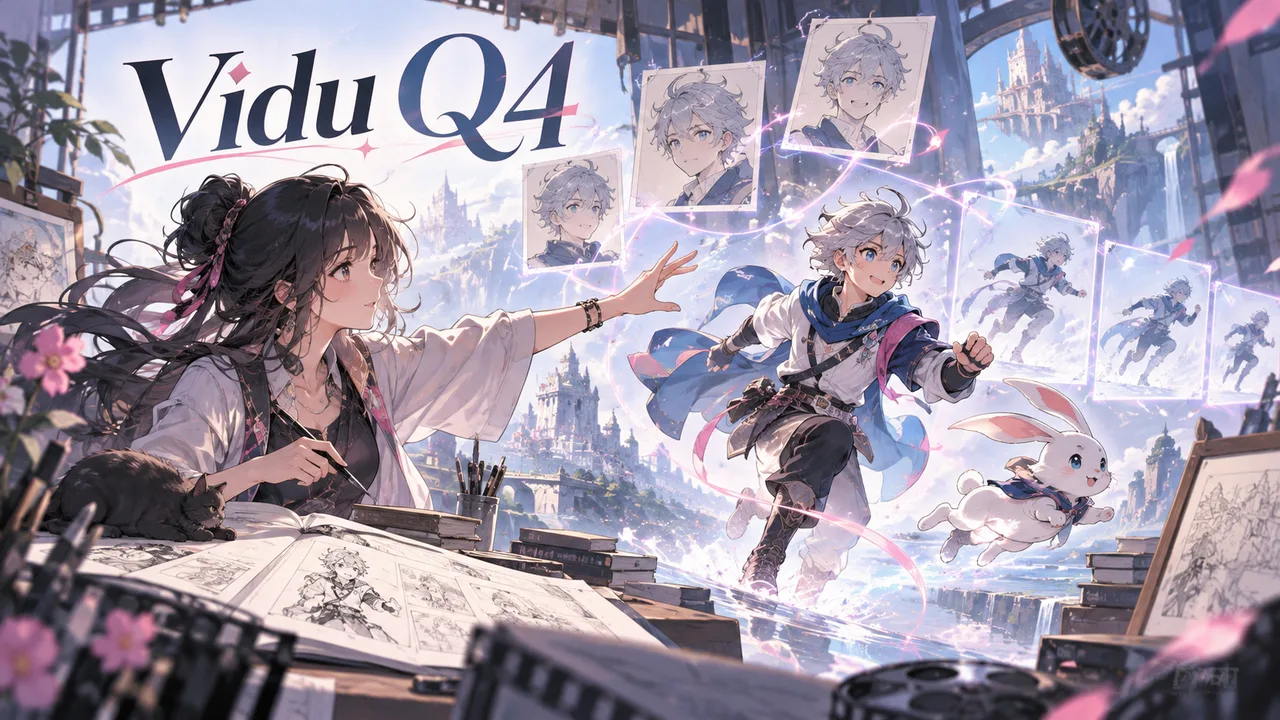
Vidu Q4 is an AI video generation model developed by ShengShu Technology. Animate a single image or bring multiple visual references together in one video. Choose 540p to 4K, describe the action and camera movement, and enable audio when your scene needs sound.

Vidu Q4 Video Generator

MODEL OVERVIEW

What is Vidu Q4?

Vidu Q4 is a video model developed by ShengShu Technology. Image-to-video turns one image into a 3–16 second clip, while reference-to-video combines 1–15 images into a 3–16 second clip. Optional audio and up to three voice references let you explore scenes in which appearance, movement and sound work together.

Create with Vidu Q4
Vidu Q4 Video Generator
  1. Choose a workflow for your shot

    Use image-to-video to add camera movement and action to a product image, portrait or landscape. Choose reference-to-video when a scene needs several visual sources for subjects, style or setting. Describe one clear action and the intended camera movement so the scene has a readable focus.

  2. Prepare clear visual and voice references

    Image-to-video accepts one image and inherits its aspect ratio. Reference-to-video accepts 1–15 images; choose useful views and avoid contradictory appearances. You may add up to three MP3 voice references, each 3–12 seconds and no larger than 50 MB. Use recordings you have permission to upload.

  3. Set duration, composition and sound

    Upload your source images, describe the action, and choose a resolution from 540p, 720p, 1080p, 2K or 4K. Single-image clips run 3–16 seconds; reference clips run 3–16 seconds with 16:9, 9:16, 1:1, 4:3 or 3:4 framing. Audio is optional and switched off by default. Review the current credit estimate before submitting.

CORE CAPABILITIES

Vidu Q4 features

Choose the input workflow that fits your scene.

Choose a workflow for your shot

Use image-to-video to add camera movement and action to a product image, portrait or landscape. Choose reference-to-video when a scene needs several visual sources for subjects, style or setting. Describe one clear action and the intended camera movement so the scene has a readable focus.

Prepare clear visual and voice references

Image-to-video accepts one image and inherits its aspect ratio. Reference-to-video accepts 1–15 images; choose useful views and avoid contradictory appearances. You may add up to three MP3 voice references, each 3–12 seconds and no larger than 50 MB. Use recordings you have permission to upload.

Set duration, composition and sound

Upload your source images, describe the action, and choose a resolution from 540p, 720p, 1080p, 2K or 4K. Single-image clips run 3–16 seconds; reference clips run 3–16 seconds with 16:9, 9:16, 1:1, 4:3 or 3:4 framing. Audio is optional and switched off by default. Review the current credit estimate before submitting.

Create clips for editing and sharing

Use the resulting clip as a scene in a social video, a product presentation or a visual storyboard. Higher resolution can suit a larger viewing surface, while a shorter clip helps you explore a focused action. When audio is enabled, review the image and sound together before deciding how the clip fits your project.

LIVE SETTINGS

Vidu Q4 supported settings

These values come from the currently configured Vidu Q4 route, so this table stays aligned with what the generator can actually submit.

Aspect Ratio
16:9 · 9:16 · 1:1 · 4:3 · 3:4
Resolution
720p · 540p · 1080p · 2k · 4k
Duration
3s · 4s · 5s · 6s · 7s · 8s · 9s · 10s · 11s · 12s · 13s · 14s · 15s · 16s
Reference Image
15
Sound
✓
Reference Audio
✓

HOW TO USE IT

How to use Vidu Q4

Upload your source images, describe the action, and choose a resolution from 540p, 720p, 1080p, 2K or 4K. Single-image clips run 3–16 seconds; reference clips run 3–16 seconds with 16:9, 9:16, 1:1, 4:3 or 3:4 framing. Audio is optional and switched off by default. Review the current credit estimate before submitting.

  1. Choose a workflow for your shot

    Use image-to-video to add camera movement and action to a product image, portrait or landscape. Choose reference-to-video when a scene needs several visual sources for subjects, style or setting. Describe one clear action and the intended camera movement so the scene has a readable focus.

  2. Prepare clear visual and voice references

    Image-to-video accepts one image and inherits its aspect ratio. Reference-to-video accepts 1–15 images; choose useful views and avoid contradictory appearances. You may add up to three MP3 voice references, each 3–12 seconds and no larger than 50 MB. Use recordings you have permission to upload.

  3. Set duration, composition and sound

    Upload your source images, describe the action, and choose a resolution from 540p, 720p, 1080p, 2K or 4K. Single-image clips run 3–16 seconds; reference clips run 3–16 seconds with 16:9, 9:16, 1:1, 4:3 or 3:4 framing. Audio is optional and switched off by default. Review the current credit estimate before submitting.

BEST USE CASES

Where Vidu Q4 works best

Use the resulting clip as a scene in a social video, a product presentation or a visual storyboard. Higher resolution can suit a larger viewing surface, while a shorter clip helps you explore a focused action. When audio is enabled, review the image and sound together before deciding how the clip fits your project.

  1. Choose a workflow for your shot

    Use image-to-video to add camera movement and action to a product image, portrait or landscape. Choose reference-to-video when a scene needs several visual sources for subjects, style or setting. Describe one clear action and the intended camera movement so the scene has a readable focus.

  2. Prepare clear visual and voice references

    Image-to-video accepts one image and inherits its aspect ratio. Reference-to-video accepts 1–15 images; choose useful views and avoid contradictory appearances. You may add up to three MP3 voice references, each 3–12 seconds and no larger than 50 MB. Use recordings you have permission to upload.

  3. Create clips for editing and sharing

    Use the resulting clip as a scene in a social video, a product presentation or a visual storyboard. Higher resolution can suit a larger viewing surface, while a shorter clip helps you explore a focused action. When audio is enabled, review the image and sound together before deciding how the clip fits your project.

  4. Download and finish your video

    Download a result you want to keep, then trim it, arrange it with other shots and add captions or audio in your editor. Check the crop and legibility for the intended screen. Vidu Q4 does not establish commercial rights to your references, voices or generated content; confirm permissions and applicable terms before publication.

PROMPT GUIDE

How to prompt Vidu Q4

Use image-to-video to add camera movement and action to a product image, portrait or landscape. Choose reference-to-video when a scene needs several visual sources for subjects, style or setting. Describe one clear action and the intended camera movement so the scene has a readable focus.

Create with Vidu Q4
  1. Choose a workflow for your shot

    Use image-to-video to add camera movement and action to a product image, portrait or landscape. Choose reference-to-video when a scene needs several visual sources for subjects, style or setting. Describe one clear action and the intended camera movement so the scene has a readable focus.

  2. Prepare clear visual and voice references

    Image-to-video accepts one image and inherits its aspect ratio. Reference-to-video accepts 1–15 images; choose useful views and avoid contradictory appearances. You may add up to three MP3 voice references, each 3–12 seconds and no larger than 50 MB. Use recordings you have permission to upload.

  3. Review the whole result before choosing

    Watch the clip from beginning to end. Compare subject details with your references, look for changes in faces, hands or products, and check camera motion and scene transitions. If sound is enabled, listen for voice character, timing and unwanted audio. Reference identity and lip synchronization are not guaranteed; revise the input or description when needed.

PROMPT EXAMPLES

Vidu Q4 prompt examples

Use image-to-video to add camera movement and action to a product image, portrait or landscape. Choose reference-to-video when a scene needs several visual sources for subjects, style or setting. Describe one clear action and the intended camera movement so the scene has a readable focus.

  1. 01

    A cinematic close-up of rain hitting a quiet lake, slow camera push, realistic ripples, soft morning light, natural motion.

  2. 02

    A premium sneaker rotates on a studio platform while the camera makes a controlled orbit and reflections move naturally across the material.

  3. 03

    A manga-inspired city alley at night comes alive with drifting steam, moving signs, and a smooth forward tracking shot.

WHAT TO REVIEW

Vidu Q4 limitations and review points

Watch the clip from beginning to end. Compare subject details with your references, look for changes in faces, hands or products, and check camera motion and scene transitions. If sound is enabled, listen for voice character, timing and unwanted audio. Reference identity and lip synchronization are not guaranteed; revise the input or description when needed.

Vidu Q4 Video Generator
  • Image-to-video accepts one image and inherits its aspect ratio. Reference-to-video accepts 1–15 images; choose useful views and avoid contradictory appearances. You may add up to three MP3 voice references, each 3–12 seconds and no larger than 50 MB. Use recordings you have permission to upload.

  • Watch the clip from beginning to end. Compare subject details with your references, look for changes in faces, hands or products, and check camera motion and scene transitions. If sound is enabled, listen for voice character, timing and unwanted audio. Reference identity and lip synchronization are not guaranteed; revise the input or description when needed.

  • Download a result you want to keep, then trim it, arrange it with other shots and add captions or audio in your editor. Check the crop and legibility for the intended screen. Vidu Q4 does not establish commercial rights to your references, voices or generated content; confirm permissions and applicable terms before publication.

Create with Vidu Q4
FAQ

Vidu Q4 FAQ