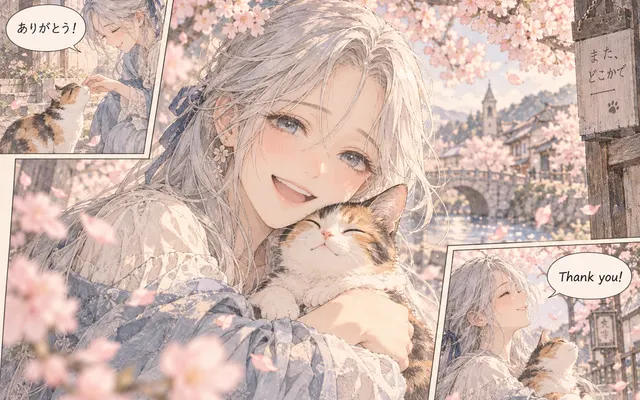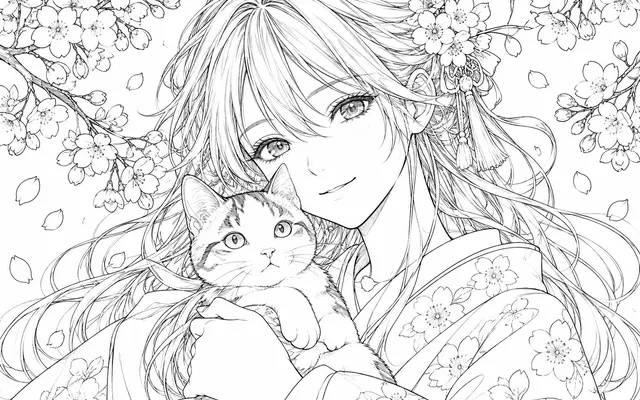
Panel layout survives
Panel borders, gutters and reading order stay exactly as they were drawn.
Colorize manga by uploading one complete black-and-white page, choosing a style, and describing the palette you want. Generate a color draft, then compare every panel and speech bubble with the original. This workflow is for reviewing a finished page; it does not build a new page layout or automatically color an entire chapter.
HOW IT WORKS
Colorize manga by uploading one complete black-and-white page, choosing a style, and describing the palette you want. Generate a color draft, then compare every panel and speech bubble with the original. This workflow is for reviewing a finished page; it does not build a new page layout or automatically color an entire chapter.
Sign in and upload one complete PNG, JPG, or WebP page with readable panel borders and text. Use artwork you own or have permission to edit.
Choose a coloring style and name important hair, clothing, background, and lighting colors. Check the displayed credit cost before submitting.
Generate the draft and inspect all panels at full size. Compare text, contours, and tone patterns with your source, then download the version you accept.
HOW IT WORKS
Three steps that cut unnecessary redrawing.
Use a sharp digital export or straighten your scan before upload. Save as PNG, JPG, or WebP, and avoid heavy compression that makes thin lines and text hard to read.
State the time of day, whether the tone should read warm or cool, and which areas must stay flat. An explicit brief reduces repeat attempts.
Open the original beside the result and zoom into small lettering and halftone dots. Keep it only if the ink lines stayed in place.
IN PRACTICE
Sign in to generate. The tool uses credits; previewing this page is free.
Sign in and upload one complete PNG, JPG, or WebP page with readable panel borders and text. Use artwork you own or have permission to edit.
FEATURE HIGHLIGHTS
Use the colorizer when a finished black-and-white page needs colour and nothing else.
Panel borders, gutters and reading order stay exactly as they were drawn.
Outline weight is preserved instead of being repainted or softened.
Review a single page against the source before committing a whole chapter.
FEATURE HIGHLIGHTS
Upload a black-and-white manga page and add color while keeping the panel layout and ink lines readable.
Describe the scene's lighting and main character colors so the instruction applies across its panels.
Review each panel rather than judging only the thumbnail. Look for changed expressions, gutters, bubbles, or fine ink lines.
Download a draft only after checking its dialogue and artwork. Keep your source page for later corrections.
CHECK BEFORE USE
Sign in to generate. The tool uses credits; previewing this page is free.
CHECK BEFORE USE
Upload a clear PNG, JPG or WebP image.
Upload one complete page, choose a coloring style, and describe any important palette choices. Generate a draft, compare its panels and dialogue with the source, then download it after review.
AI may change expressions, hands, fine contours, speech-bubble lettering, and screentones. Check every panel against the original rather than assuming the whole page is unchanged.
Choose a coloring style and describe the scene's lighting, main character colors, and any areas that should remain monochrome. Keep the instruction about color rather than asking for a different composition.
Examples are free to browse, and the free plan offers signup trial credits. See Pricing for the current allowance and expiry. Each generated page consumes the displayed credit cost; paid plans and credit packs provide further credits.
Yes. Sign in to upload an image and generate a result.
No. Export PDF pages as images first, then upload the images.
This workflow accepts one page per generation. Process later pages separately, reuse approved color notes, and compare recurring characters across the results. It does not automatically batch chapters or guarantee matching colors.