FLUX.3 Image Generator

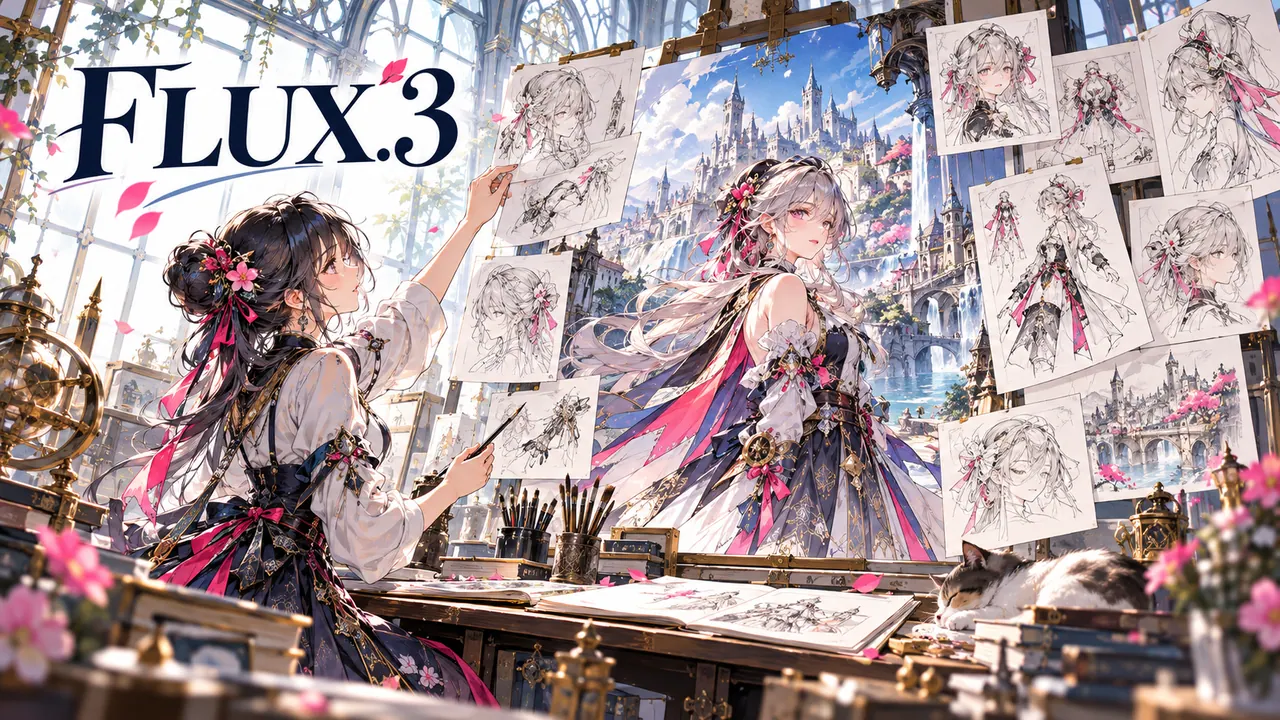
FLUX.3 is an AI image generation model developed by Black Forest Labs. Develop manga character sheets and painted scenes with FLUX.3. Start from text or up to ten visual references, then choose 1K, 2K or 4K.

FLUX.3 Image Generator

MODEL OVERVIEW

What is FLUX.3?

Develop manga character sheets and painted scenes with FLUX.3. Start from text or up to ten visual references, then choose 1K, 2K or 4K.

Create with FLUX.3 Klein
FLUX.3 Image Generator
  1. Character studies

    Describe the hairstyle, clothing and expression of one original character. Compare the face and silhouette with your design before choosing a variation.

  2. Edit a photo with a clear instruction

    Upload a sharp photo and name both the change and what should stay: for example, replace the background while keeping the product shape and viewpoint. The model can also change unintended details, so compare faces, labels, edges and proportions with the original before using the edit.

  3. Combine up to 10 reference images

    Use JPG, PNG or WEBP references of up to 10 MB each. Explain each image's role, such as the subject, setting or colour direction, and avoid contradictory views. Ten is the upload limit, not a guarantee that every identity or detail will be preserved; fewer well-chosen images may make your request clearer.

CORE CAPABILITIES

FLUX.3 capabilities

Develop manga character sheets and painted scenes with FLUX.3. Start from text or up to ten visual references, then choose 1K, 2K or 4K.

Generate from a focused description

Describe the main subject, setting, light and framing before adding style details. For a product concept, specify its material and the space around it. Start with one clear composition rather than several conflicting scenes; you can refine the next attempt after reviewing the first image.

Edit a photo with a clear instruction

Upload a sharp photo and name both the change and what should stay: for example, replace the background while keeping the product shape and viewpoint. The model can also change unintended details, so compare faces, labels, edges and proportions with the original before using the edit.

Combine up to 10 reference images

Use JPG, PNG or WEBP references of up to 10 MB each. Explain each image's role, such as the subject, setting or colour direction, and avoid contradictory views. Ten is the upload limit, not a guarantee that every identity or detail will be preserved; fewer well-chosen images may make your request clearer.

Choose a composition for the destination

Use 1:1 for square placements, 4:3 or 3:2 for landscape layouts, 3:4 or 2:3 for portraits, and 16:9 or 9:16 for wide or vertical compositions. Auto uses a square for text-only generation and lets an image edit follow its references. Describe where the subject should sit if you need room for later typography.

LIVE SETTINGS

FLUX.3 supported settings

These values come from the currently configured FLUX.3 route, so this table stays aligned with what the generator can actually submit.

Aspect Ratio
auto · 1:1 · 4:3 · 3:4 · 16:9 · 9:16 · 3:2 · 2:3
Resolution
1K · 2K · 4K
Reference Image
10
Output Format
png · jpeg
Image Count
1

HOW TO USE IT

How to use FLUX.3

Develop manga character sheets and painted scenes with FLUX.3. Start from text or up to ten visual references, then choose 1K, 2K or 4K.

  1. Generate from a focused description

    Describe the main subject, setting, light and framing before adding style details. For a product concept, specify its material and the space around it. Start with one clear composition rather than several conflicting scenes; you can refine the next attempt after reviewing the first image.

  2. Combine up to 10 reference images

    Use JPG, PNG or WEBP references of up to 10 MB each. Explain each image's role, such as the subject, setting or colour direction, and avoid contradictory views. Ten is the upload limit, not a guarantee that every identity or detail will be preserved; fewer well-chosen images may make your request clearer.

  3. Review, download and use the result

    Sign in, confirm your balance and the credit estimate, then submit your request. Once the image is ready, inspect it and use the result's download control. Open the saved file before handing it off for a website, presentation or further editing. Check rights to your inputs and applicable service and model terms before publishing.

BEST USE CASES

Where FLUX.3 works best

Anime & Manga

  1. Character studies

    Describe the hairstyle, clothing and expression of one original character. Compare the face and silhouette with your design before choosing a variation.

  2. Manga atmosphere

    Build a rain-soaked street or a quiet studio around a readable subject. Keep the light direction and palette consistent with the adjacent panels.

  3. Storyboard planning

    Give each composition one narrative purpose. Review the framing and the position of the subject before assembling it with other panels or shots.

  4. Publishing drafts

    Plan wide or vertical framing for the intended screen. Add exact captions in an editor and review the downloaded file before sharing.

PROMPT GUIDE

How to prompt FLUX.3

Give each composition one narrative purpose. Review the framing and the position of the subject before assembling it with other panels or shots.

Create with FLUX.3 Klein
  1. Character studies

    Describe the hairstyle, clothing and expression of one original character. Compare the face and silhouette with your design before choosing a variation.

  2. Manga atmosphere

    Build a rain-soaked street or a quiet studio around a readable subject. Keep the light direction and palette consistent with the adjacent panels.

  3. Storyboard planning

    Give each composition one narrative purpose. Review the framing and the position of the subject before assembling it with other panels or shots.

PROMPT EXAMPLES

FLUX.3 prompt examples

Anime & Manga

  1. 01

    An original manga heroine in a quiet atelier, navy coat, soft window light, clear silhouette, delicate watercolor background.

  2. 02

    A fox spirit under a cherry tree at dusk, restrained pink petals, cool shadows, a simple readable composition.

  3. 03

    An anime city after rain, reflections on the pavement, one cyclist in the foreground, clean perspective and cinematic framing.

WHAT TO REVIEW

FLUX.3 limitations and review points

Plan wide or vertical framing for the intended screen. Add exact captions in an editor and review the downloaded file before sharing.

FLUX.3 Image Generator
  • Upload a sharp photo and name both the change and what should stay: for example, replace the background while keeping the product shape and viewpoint. The model can also change unintended details, so compare faces, labels, edges and proportions with the original before using the edit.

  • Try a tabletop product scene, a seasonal background or a consistent colour direction for a campaign concept. Keep the reference product visible and change one major element at a time. Compare the generated silhouette, packaging and logos with your source; a visually appealing concept is not proof of an exact catalogue match or permission to use a brand.

  • Sign in, confirm your balance and the credit estimate, then submit your request. Once the image is ready, inspect it and use the result's download control. Open the saved file before handing it off for a website, presentation or further editing. Check rights to your inputs and applicable service and model terms before publishing.

Create with FLUX.3 Klein
FAQ

FLUX.3 · FAQ